 Databit
Data usage widget for iPhone
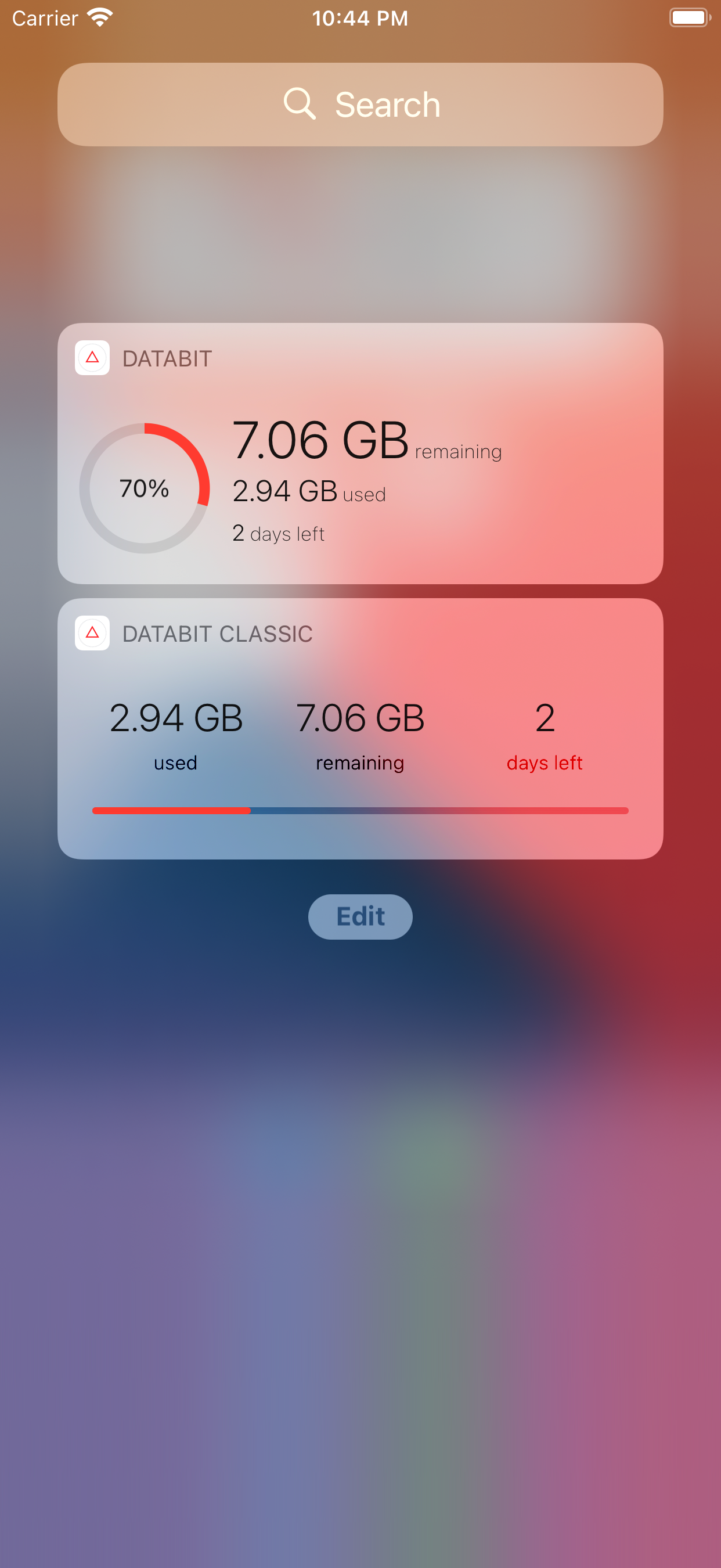
iOS doesn't include a native cellular data widget, but Databit gives you two: Databit and Databit Classic show your remaining GB, used data and days left right on the home screen, refreshed on average every 5 minutes.
Why a widget changes everything
The best data meter is the one you never open. With a widget on your home screen, checking your remaining data costs the same as checking the time — which means you'll actually do it before hitting play on that video over 5G.
Databit's two widgets
- Databit: a progress ring with the percentage, plus GB remaining, GB used and days left.
- Databit Classic: the three big numbers — used, remaining, days left — over a progress bar.
Adding the widget, step by step
- Install Databit and set up your plan (GB and billing day).
- Long-press an empty spot on the home screen until apps jiggle.
- Tap the + (top left) and search for Databit.
- Pick a style — Databit or Databit Classic — and tap Add Widget.
You can also add it to Today View (swipe right from the lock screen) to check your data without unlocking the phone.
How often does it refresh?
iOS rations widget refreshes to protect battery life. Databit is tuned to update about every 5 minutes on average; tap the widget and the app opens with a byte-accurate, to-the-second reading.
Track your data usage in real time
Databit shows how many GB you have left, alerts you at 20% and 10%, and resets automatically on your billing day. One-time purchase, no subscription.
Get Databit — 4.6★ on the App Store