 Databit
How to check data usage on iPhone
Checking data usage with iOS settings
- Open Settings and tap Cellular (or “Mobile Data” in some regions).
- Scroll to Cellular Data: you'll see the total used in the “Current Period”.
- Below that, usage is broken down per app, largest first.
The steps are identical on iPhone 11 through iPhone 16 Pro — the path hasn't changed in years.
The problem: “Current Period” isn't your billing cycle
The iOS counter counts from the last time someone tapped “Reset Statistics” — which may have been eight months ago, or never. That's why the number rarely matches what your carrier is billing you this month. And iOS tells you what you've spent, never how many GB you have left, how many days remain in your cycle, or when you're about to hit your cap.
Seeing your real usage with Databit
- Automatic reset: set your billing day once; the counter resets itself every cycle.
- Data remaining, not just used: the circular meter shows your GB left and percentage remaining, measured byte by byte across LTE, 4G, 3G and EDGE.
- No app-opening required: two home-screen widgets show used, remaining and days left.
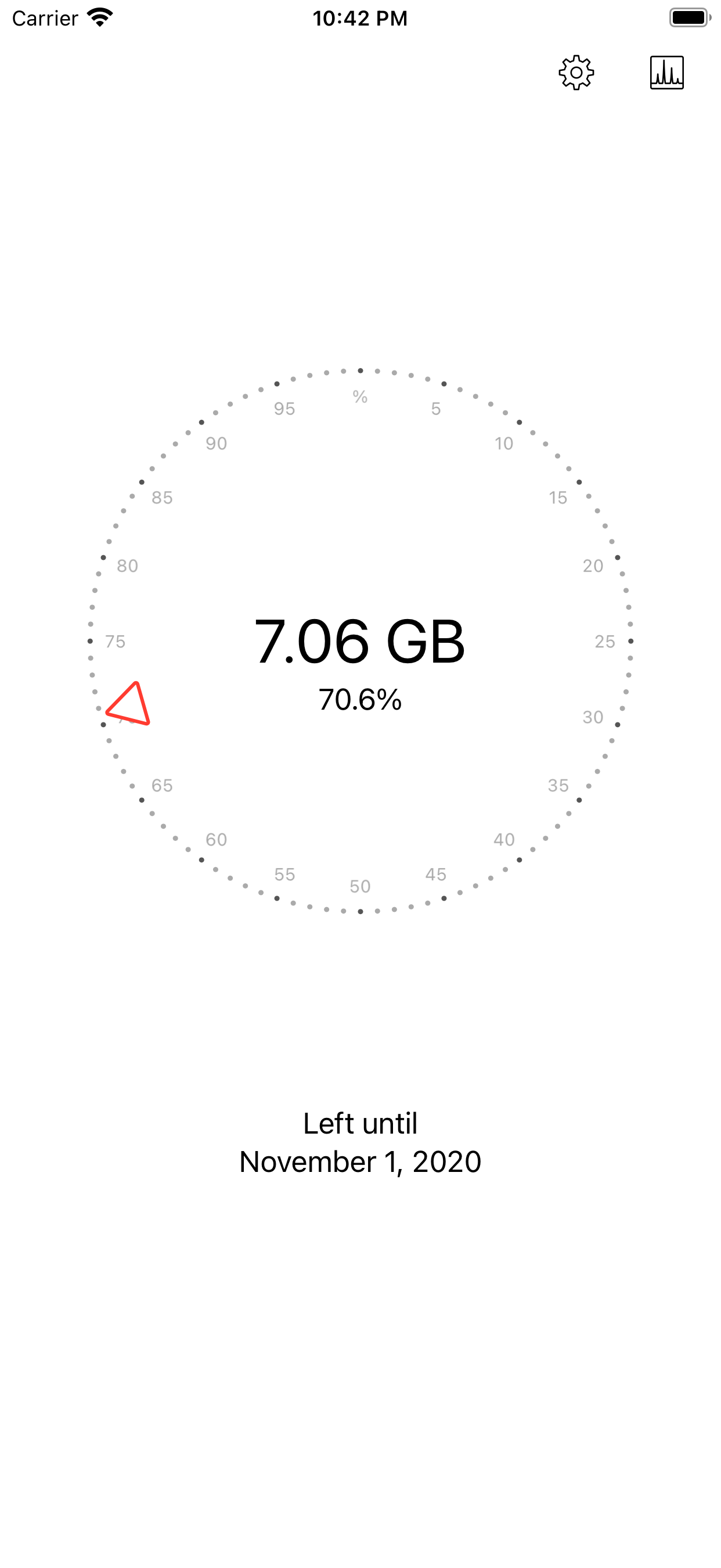
Setup takes two minutes: download Databit, enter your plan's GB and your billing day, and you're done.
What about per-app usage?
Apple doesn't let third-party apps read the per-app breakdown; that detail lives only in Settings > Cellular. The winning combo: Databit for the real-time total, cycle tracking and alerts — plus the Settings list when you need to identify which specific app is eating your plan.
Track your data usage in real time
Databit shows how many GB you have left, alerts you at 20% and 10%, and resets automatically on your billing day. One-time purchase, no subscription.
Get Databit — 4.6★ on the App Store