 Databit
Does hotspot use a lot of data?
Yes. The hotspot itself doesn't add overhead, but the devices connected to it — especially laptops — consume far more than a phone: OS updates, cloud sync and desktop-class websites can burn 1 GB in under an hour. The fix is metering the traffic in real time while you share.
Why hotspot devours your plan
Your iPhone is designed for cellular: it compresses, defers downloads and rations background traffic. Your laptop isn't — it assumes it's on home Wi-Fi and behaves accordingly:
- System and app updates downloading on their own (Windows Update is notorious).
- Cloud sync: iCloud, Dropbox, Google Drive, OneDrive moving files both ways.
- Desktop websites, heavier than their mobile versions.
- Desktop-quality video: YouTube on a laptop defaults toward 1080p.
Typical outcome: you tether “just to send an email” and 40 minutes later 3 GB are gone.
How to share internet without burning your data
- Before connecting the laptop: pause cloud sync and automatic updates. On Windows, set the hotspot network as metered; on Mac, enable Low Data Mode for it.
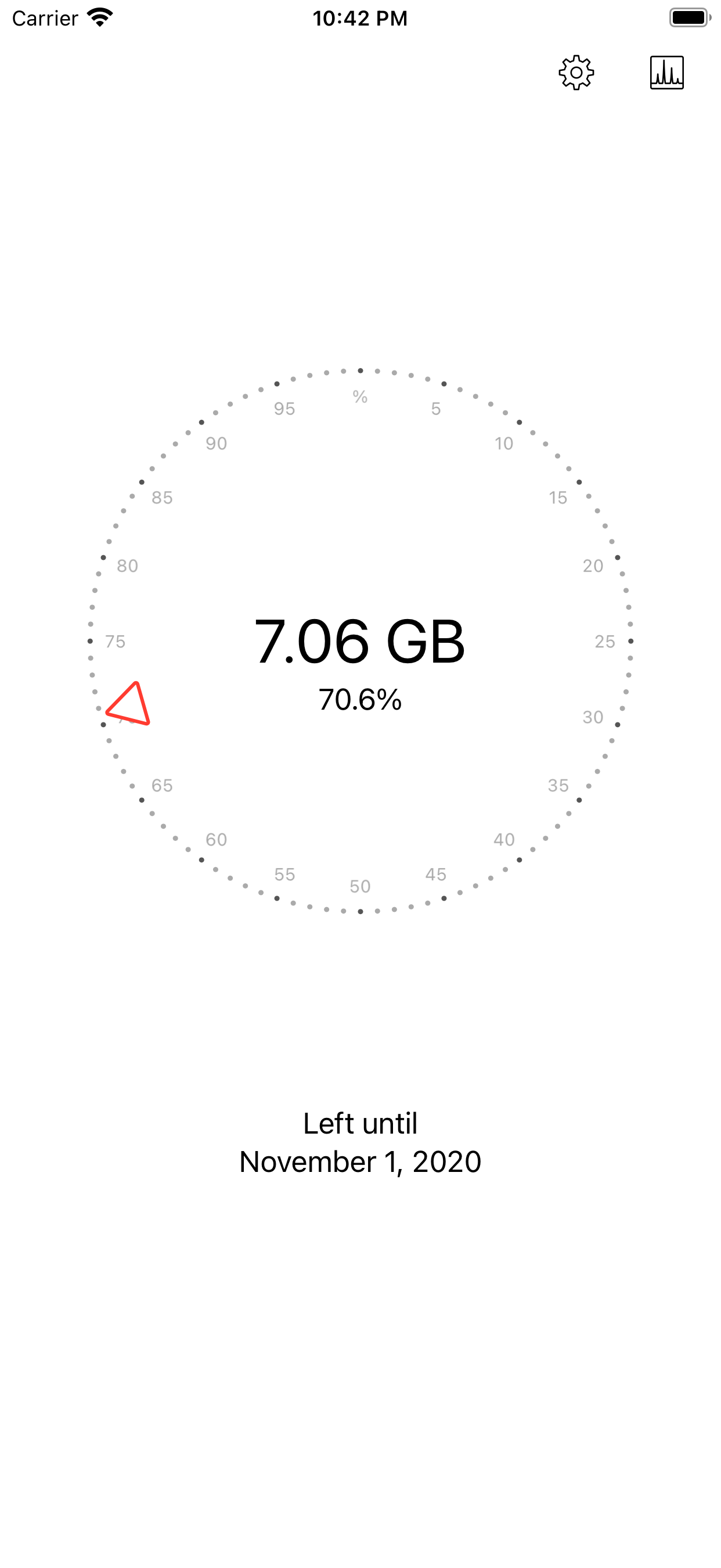
- Watch the total live. Open Databit before sharing and keep the widget visible: you'll see the GB tick down in real time. Databit measures all the iPhone's traffic — including what hotspot devices generate — which is why the App Store listing calls it ideal for Personal Hotspot.
- Set a stop-loss. With 20% and 10% alerts on, Databit warns you if the session goes too far.
The morning-after trick
After a hotspot session, open Databit's daily chart: that day's bar tells you exactly what it cost. A couple of measured sessions and you'll know whether your plan can support regular tethering or you need a bigger bucket on work-away days.
Track your data usage in real time
Databit shows how many GB you have left, alerts you at 20% and 10%, and resets automatically on your billing day. One-time purchase, no subscription.
Get Databit — 4.6★ on the App Store