 Databit
Background data on iPhone: what it is and how to turn it off
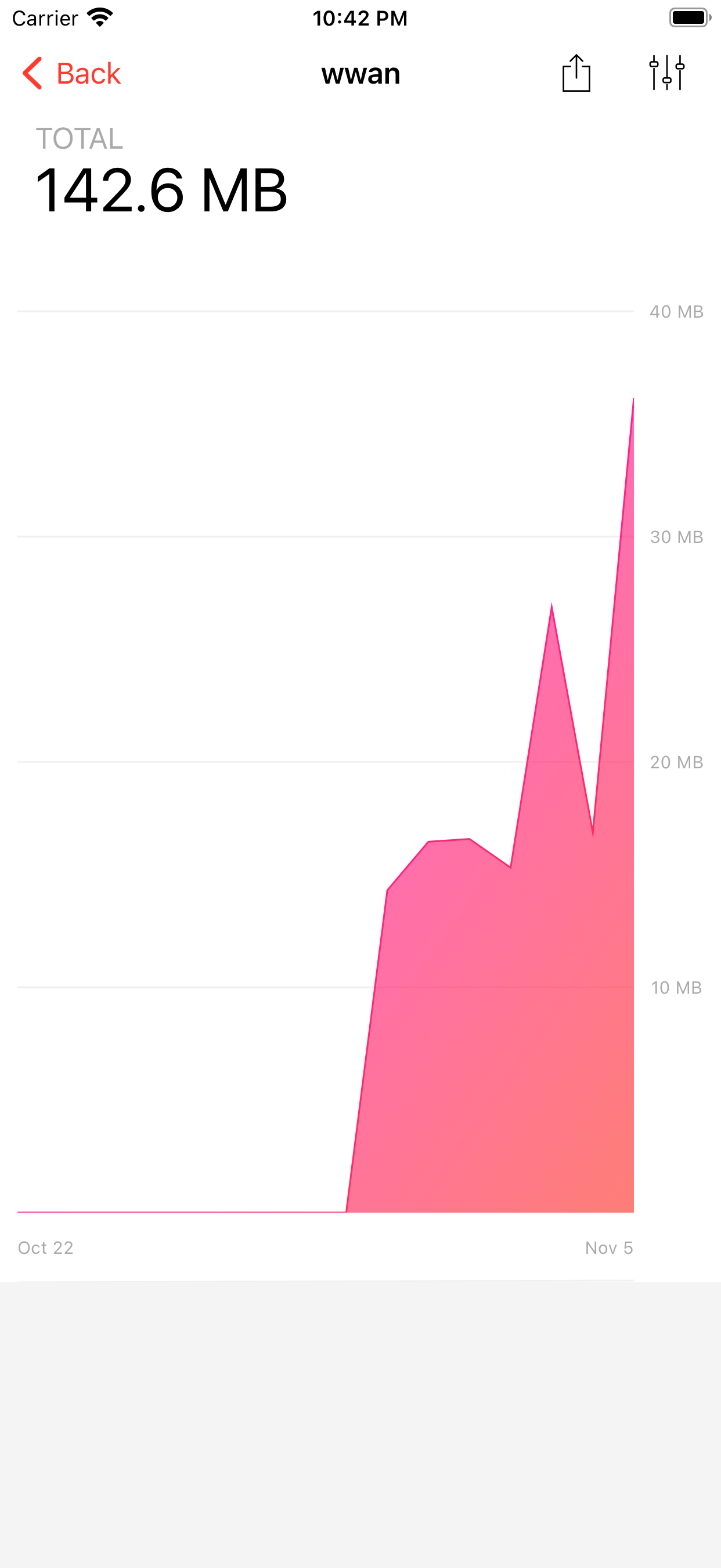
To stop background data on iPhone, go to Settings > General > Background App Refresh and switch it to Wi-Fi (or off per app). Add Low Data Mode in Settings > Cellular for good measure. Then verify in Databit's daily chart that your usage actually dropped.
What's happening behind your back
Even in your pocket, many apps keep working: refreshing feeds, preloading videos, uploading photos, syncing “so it's ready when you open”. All of it rides your cellular plan when you're not on Wi-Fi — and it can be a serious share of your monthly total.
Turning it off, step by step
- Open Settings > General > Background App Refresh.
- Choose Wi-Fi so apps refresh only on Wi-Fi (the best balance), or Off to cut it entirely.
- Surgical alternative: leave it on and disable it per app — start with social, streaming and photo apps.
Worthwhile reinforcements
- Low Data Mode: Settings > Cellular > Cellular Data Options. Pauses automatic tasks and backups over cellular.
- Wi-Fi Assist off: bottom of Settings > Cellular; stops the silent switch to cellular when Wi-Fi is weak.
- App Store downloads: Settings > App Store → disable automatic downloads over cellular.
Verify it worked (don't assume)
- Note your daily average for the past week in Databit's chart (say, 350 MB/day).
- Apply the settings above.
- Compare the following days: if background refresh was your leak, the bars drop immediately — heavy social-app users often save 15–30%.
And with 20%/10% alerts on, if an app ever goes rogue again, you'll know before it touches your bill.
Track your data usage in real time
Databit shows how many GB you have left, alerts you at 20% and 10%, and resets automatically on your billing day. One-time purchase, no subscription.
Get Databit — 4.6★ on the App Store